Before you download Legacy Launcher
- Current checked version
- v3.5.0
- Release checked
- July 9, 2026
- Main source
- GitHub Releases
- Supported files
- EXE, DMG and AppImage
This guide walks through how to download Legacy Launcher from the checked GitHub release, choose the right platform file and avoid common download-page confusion around Minecraft Legacy Console Edition.
First, open the download center and choose the platform you actually use. Windows users normally need the EXE installer, macOS users need the correct DMG for Apple Silicon or Intel, and Linux users need the AppImage. Each button leads to a GitHub release asset after a short countdown.
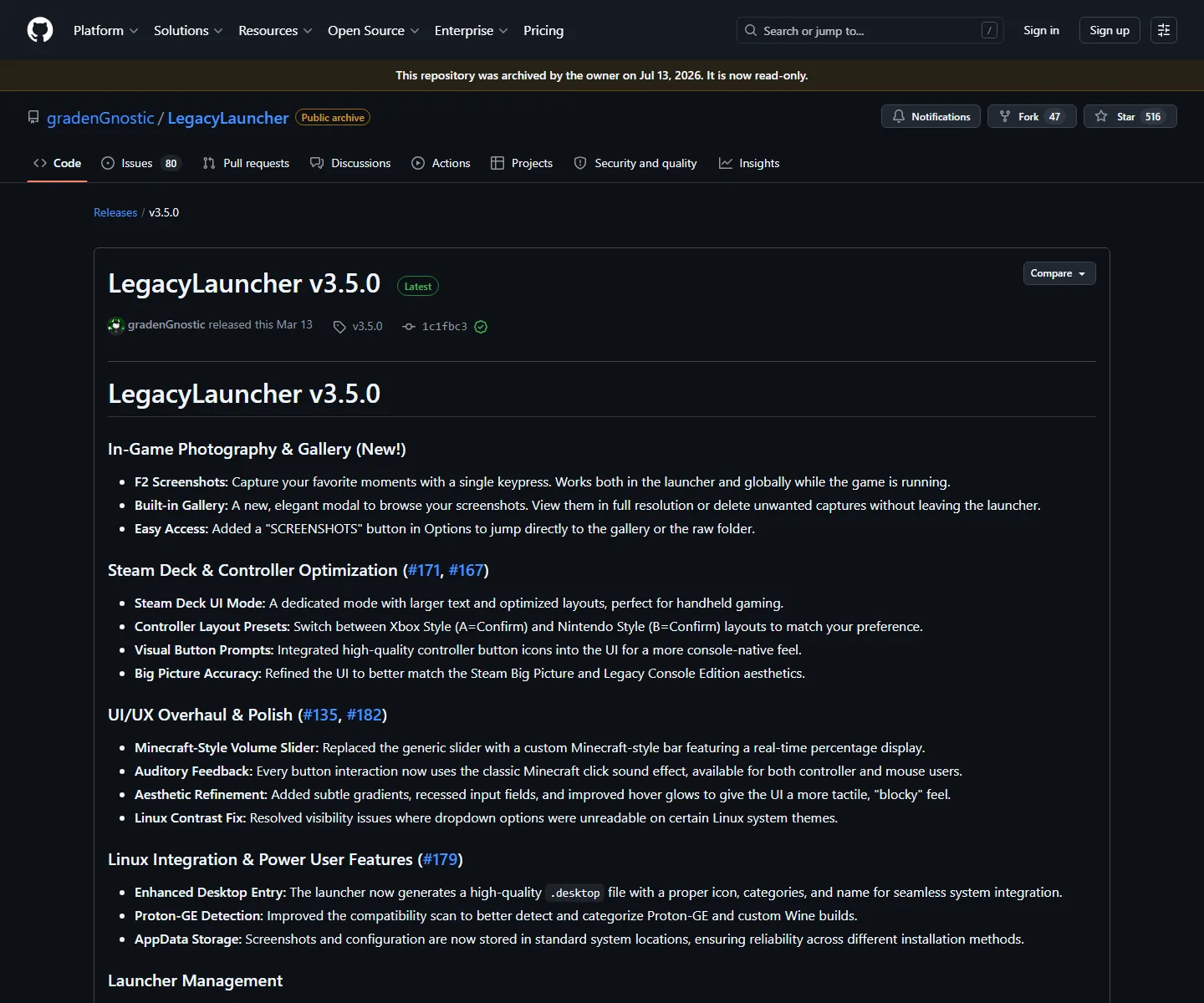
Second, check the file name and release tag before running the download. The current checked version is v3.5.0, and the expected files are LegacyLauncher.Setup.3.5.0.exe, LegacyLauncher-3.5.0-arm64.dmg, LegacyLauncher-3.5.0.dmg and LegacyLauncher-3.5.0.AppImage.
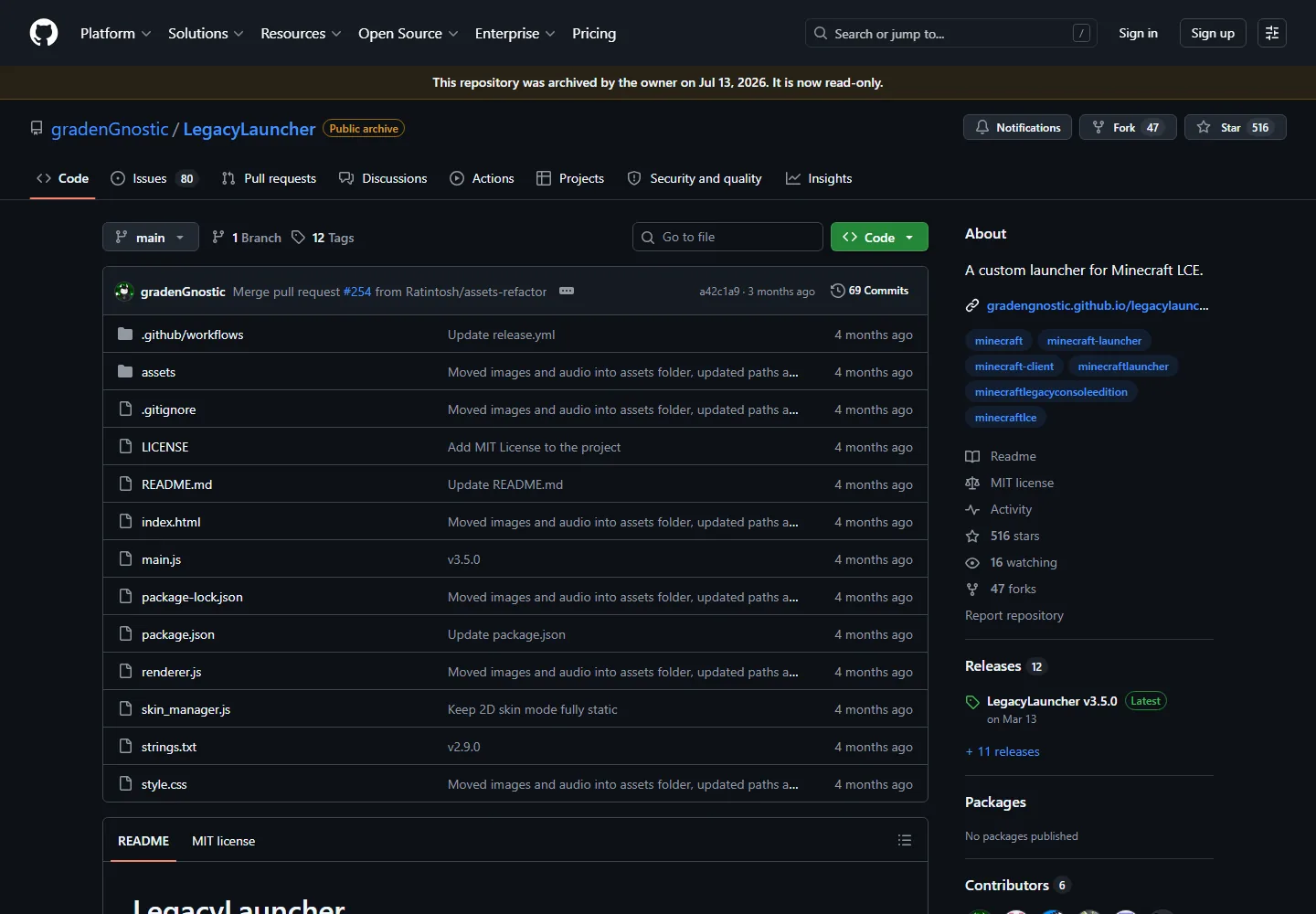
Do not download from a page just because it ranks for the same keyword. Similar names can point to TL Legacy, Java Edition launchers, mirror pages, typo pages or risky game-file promises. The safest approach is to identify the exact project and use source release links.
Do not assume that a launcher download includes Minecraft. A launcher is an application that helps start or manage a workflow; it does not create game ownership, provide accounts or replace official Minecraft sources.
How to Download Legacy Launcher starts with the platform choice. Open the download center, choose Windows, macOS, or Linux, then confirm the file name. Windows should use the EXE installer, macOS should use the correct DMG, and Linux should use the AppImage. This first step prevents most wrong-file problems.
The next step in How to Download Legacy Launcher is source verification. Let the countdown finish, check that the destination is GitHub, and compare the version tag with the page. If a browser download begins from a different host or the file name does not match the table, cancel and return to the source link.
The final step in How to Download Legacy Launcher is installation. Run the installer or AppImage according to your operating system, then configure the launcher carefully. Do not treat the launcher install as proof that every Minecraft LCE workflow is ready; profile, path, repository, and compatibility settings can still matter.
Many users search How to Download Legacy Launcher after seeing several similar results. The common mistake is clicking the first page that says download without checking which Legacy Launcher it means. This guide is for the Minecraft LCE-related Legacy Launcher project and its GitHub release assets.
Another mistake is assuming that How to Download Legacy Launcher means how to download Minecraft. It does not. The launcher is a desktop application. This site does not provide Minecraft game files, accounts, cracks, leaks, or bypass tools. Keeping that distinction clear helps users avoid unsafe or misleading pages.
A third mistake is ignoring platform-specific notes. Windows security prompts, macOS Gatekeeper prompts, and Linux execute permissions are different problems. If you follow the same instruction for every operating system, you may misread a normal prompt as a broken download. Use the platform pages when the general guide is not specific enough.
How to Download Legacy Launcher is a first-time checklist, not just a link list. Start by identifying the project, then choose the operating system, then verify the GitHub release, then run the file according to your platform. Skipping the identification step is the most common way users end up on the wrong launcher page.
The guide should be read in order if you are new. How to Download Legacy Launcher begins with the download center, continues with file-name checks, and ends with platform setup. Users who already know their file can jump directly to Windows, macOS, or Linux, but new users benefit from the full sequence.
If your browser opens a download that does not match the expected file, stop. How to Download Legacy Launcher safely means noticing that mismatch before running the file. The expected files are the Windows EXE, macOS DMG builds, and Linux AppImage from the checked release assets.
After installation, do not assume every later problem is a download problem. The launcher may need profile, repository, executable, server, or compatibility settings. How to Download Legacy Launcher gets the software onto your device; setup guides and app settings handle what happens next.
This guide also avoids unsafe shortcuts. It does not explain how to download Minecraft game files, free accounts, cracks, leaks, or bypass tools. That boundary keeps How to Download Legacy Launcher focused on the launcher application and its source release.
Before finishing the How to Download Legacy Launcher process, confirm the exact file one last time. The correct result should be a launcher installer or AppImage from the checked release, not a game archive, account tool, browser extension, or mirror wrapper. That final check prevents the most common download mistake.
One final How to Download Legacy Launcher reminder is to keep the release page and this guide open until the first launch succeeds. If the file, prompt, or source looks different from the guide, pause before continuing.
Use the GitHub release assets linked from the download center and confirm the file name and version before running the file.
Choose by operating system: EXE for Windows, DMG for macOS, and AppImage for Linux.
The countdown makes the external GitHub download step visible and helps prevent accidental clicks.
No. This guide is for the Legacy Launcher project used in Minecraft LCE search intent, not TL Legacy.