Legacy Launcher Screenshots: F2 Capture, Gallery and Save Locations
Legacy Launcher v3.5.0 adds a simple screenshot workflow: press F2 to capture a moment, open the built-in gallery to review or delete captures, and use the SCREENSHOTS control in Options to reach the gallery or its folder. This guide covers the archived gradenGnostic/LegacyLauncher project, explains what the release notes actually promise, and shows how to back up files without confusing screenshots with Minecraft game data.
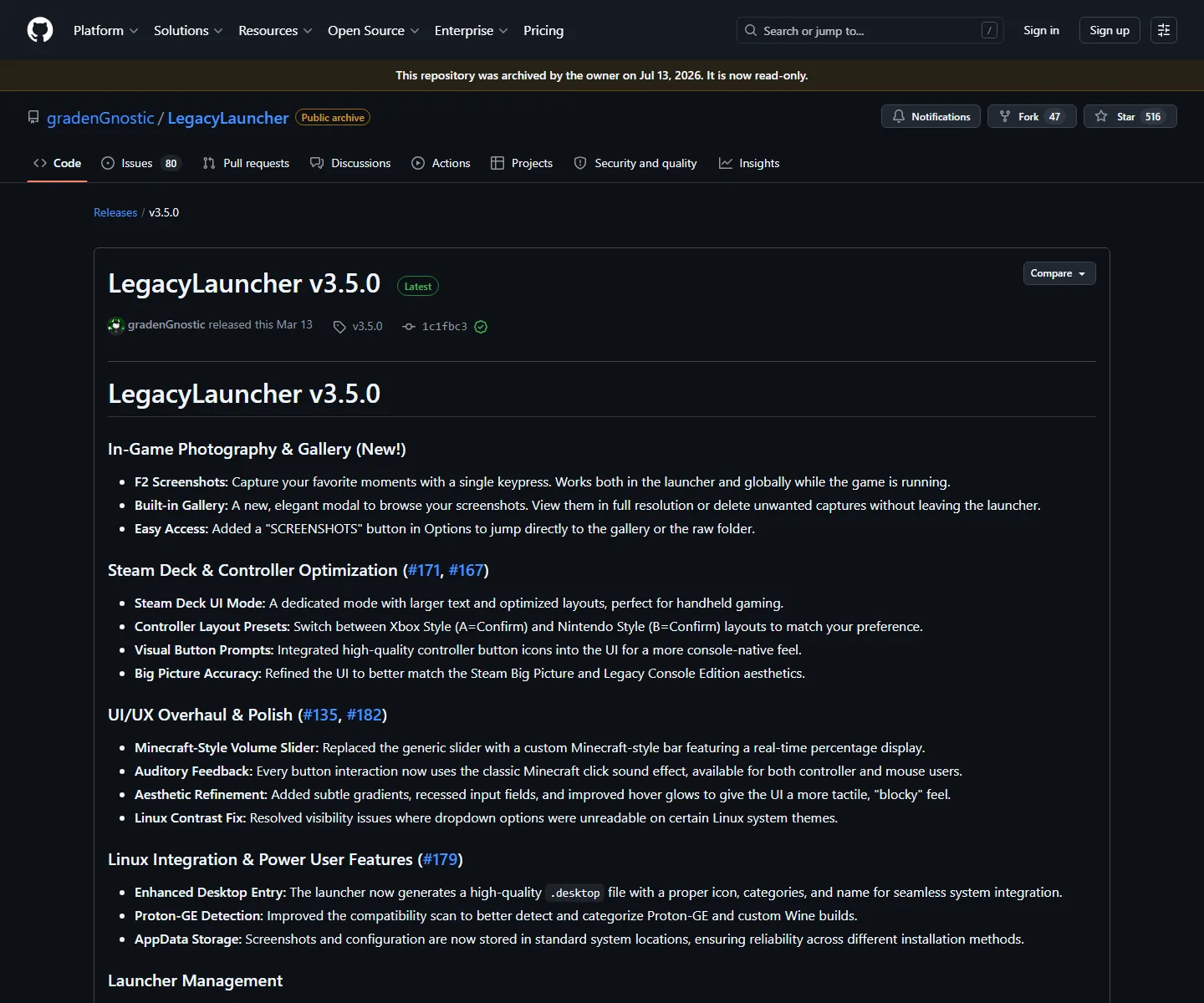
Official v3.5.0 release notes checked August 6, 2026. The project documents F2 capture, a built-in gallery and standard system storage for screenshots and configuration.
Version freshness checked August 6, 2026: the official GitHub release page still identifies v3.5.0 as the latest verified release and the repository remains archived.
quick answer
Legacy Launcher screenshot facts
Capture shortcut
F2, documented for screenshots while the launcher or game is running
Review tool
Built-in gallery for full-resolution viewing and deletion
Shortcut in Options
SCREENSHOTS opens the gallery or the screenshot folder
Storage boundary
Standard operating-system application-data locations, not the installer folder by default
Checked release
v3.5.0 — checked August 6, 2026; repository archived
intent boundary
Which Legacy Launcher screenshots does this guide cover?
This page is about the gradenGnostic/LegacyLauncher desktop project used in Minecraft Legacy Console Edition workflows. It is not a tutorial for the official Minecraft Launcher, TL Legacy, TLauncher or a Java mod manager. Similar names can lead to completely different folders and shortcut behavior, so check the repository owner before copying instructions from another guide.
The v3.5.0 release notes describe an in-game photography and gallery feature. They mention F2 screenshots, a built-in gallery, full-resolution viewing, deletion, and an Options button labeled SCREENSHOTS. Those details are enough to explain the supported workflow; they are not evidence that the app includes Minecraft files or synchronizes captures to an online account.
The project was checked again on August 6, 2026. The official release page still points to v3.5.0 and the repository is archived. Treat the instructions below as a guide to the checked release, not a promise that a future operating-system update will preserve every path or integration detail.
Use this page when the app identifies itself as gradenGnostic/LegacyLauncher.
Use the product comparison guide when the app says TL Legacy, TLauncher or Legacy4J.
Do not treat a screenshot folder as a Minecraft game-file or account folder.
Keep the release version and operating system in mind when troubleshooting a missing capture.
capture steps
How to take Legacy Launcher screenshots with F2
Start the verified launcher and open the instance or game view you want to document. When the target screen is visible, press F2 once. The release notes describe the shortcut as working in the launcher and globally while the game is running, but laptop keyboards may require an Fn key or a system-level function-key setting.
After pressing F2, wait a moment before pressing it again. A repeated key press can create several captures, while a slow disk or a busy game can make the gallery update slightly after the visible scene changes. If you are recording a setup problem, capture the complete window with the error text rather than cropping away the launcher title bar.
A screenshot is a local image capture, not a release asset and not proof that a server, account or game file is official. Use it to document a profile, an interface state, a controller prompt or a troubleshooting message. Keep the original file until you have confirmed that your backup or shared copy opens correctly.
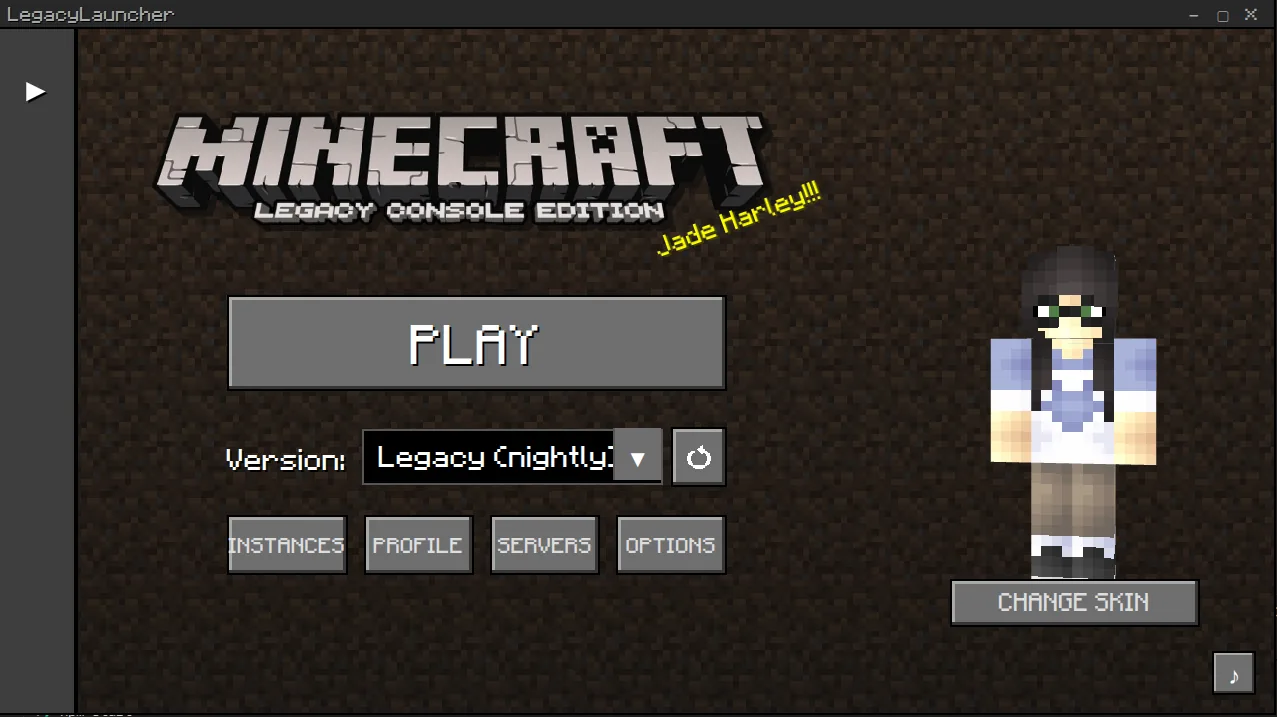
Official LegacyLauncher README interface. The Options control is the relevant entry point for the screenshot gallery and folder shortcut; this image is not an F2 capture.
Put the cursor or game state in the exact condition you want to record before pressing F2.
On compact keyboards, check whether F2 is assigned to brightness or media control.
Use descriptive filenames after copying files out of the gallery; do not rename files while the launcher is writing them.
If the capture contains account names, server addresses or local paths, redact them before sharing.
gallery workflow
How to open the built-in Legacy Launcher screenshot gallery
Open the launcher Options panel and choose SCREENSHOTS. The v3.5.0 release notes describe this as a direct route to the gallery or its folder, so it is safer than guessing a directory based on another launcher. The built-in gallery is intended to show captures at full resolution and lets you delete unwanted images without leaving the launcher.
Use the gallery as the first place to confirm whether F2 worked. If the image appears there, the capture pipeline completed even if you have not yet located the physical directory. If the gallery is empty, check the selected installation, function-key behavior, write permissions and the current app profile before reinstalling anything.
The gallery is a viewer and organizer, not a cloud backup. Deleting an image from the gallery can remove the local copy, and uninstalling or moving application data can make old captures harder to find. Copy important images to a separate folder before cleaning up the gallery.
Action
Where it happens
What it does
Best use
F2
Launcher or running game
Creates a local screenshot
Capturing a moment or error state
Gallery
Inside Legacy Launcher
Views full-resolution captures and supports deletion
Checking whether a capture completed
SCREENSHOTS
Options panel
Jumps to the gallery or screenshot folder
Finding the storage location
File manager
Your operating system
Copies or backs up the image files
Preserving captures outside app data
storage details
Where Legacy Launcher screenshots and configuration are stored
The v3.5.0 release notes say that screenshots and configuration use standard system application-data locations. That means the screenshot folder is normally associated with the operating system's app-data area rather than sitting beside the Windows installer, macOS DMG or Linux AppImage. The exact visible path can vary by platform, user profile and application settings.
Do not guess a path from the download filename. Open Options, use SCREENSHOTS, and copy the path shown by the launcher or file manager. If you need to search manually, search within your user application-data locations for recently modified image files after taking a new F2 capture. Compare the timestamp and preview instead of opening every unknown file.
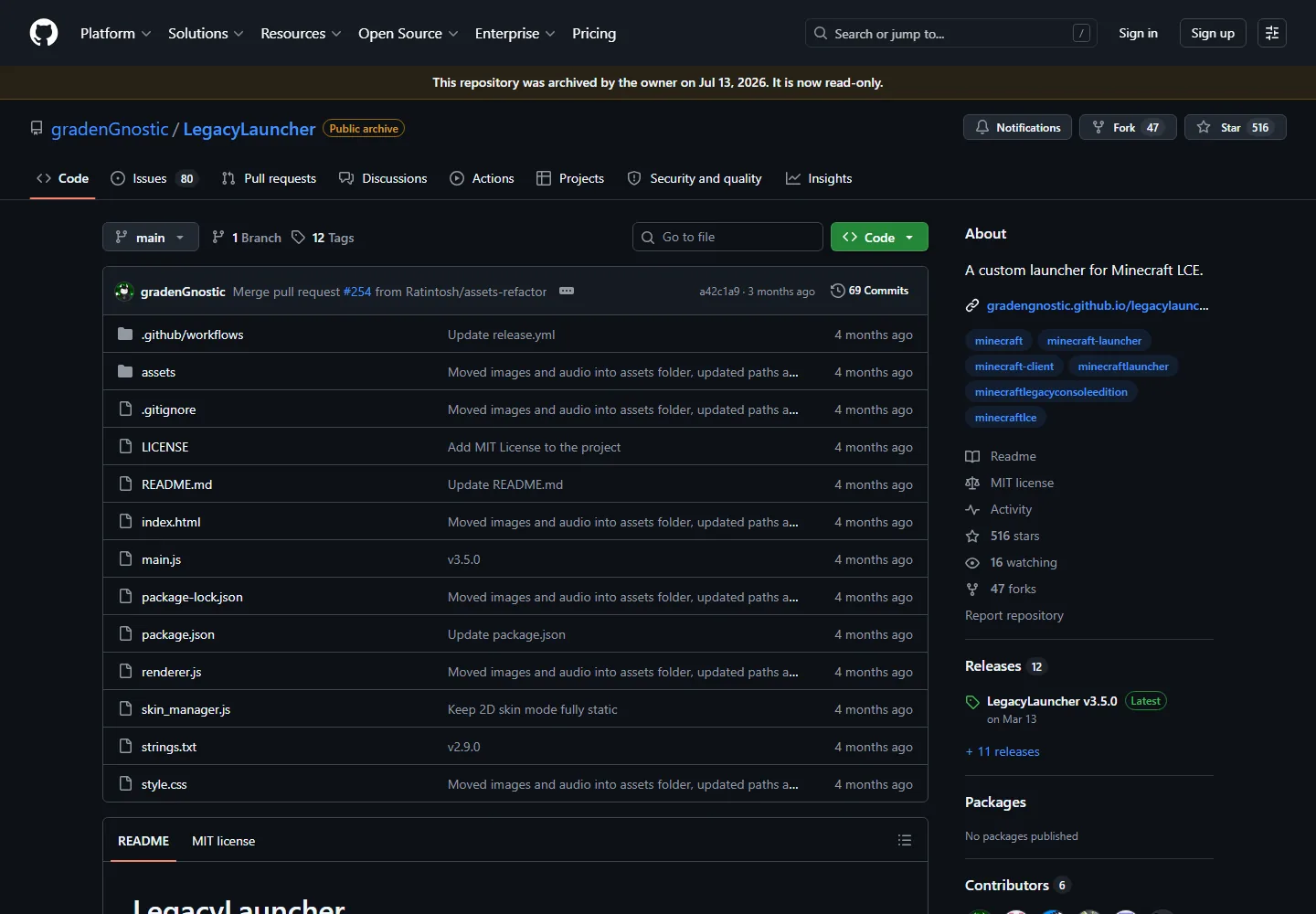
The repository screenshot below is useful for source verification, not for locating a local screenshot folder. It shows the archived project, source files and release context. Local screenshots, configuration, launcher logs and source-code files serve different purposes and should be backed up separately.
Official repository view checked August 6, 2026. It verifies the project identity and archive status; it is not the user's local screenshot directory.
Windows: start with the launcher-provided folder shortcut and the current user's application-data locations.
macOS: use the gallery shortcut first; user Library folders may be hidden by default.
Linux: check the launcher-selected application-data path instead of assuming the AppImage directory is correct.
If you move profiles or reinstall, back up screenshots and configuration before deleting app data.
backup and privacy
Back up, delete and share screenshots safely
For a reliable backup, close the launcher after the capture appears in the gallery, copy the image to a normal documents or media folder, and keep a second copy if the image records a long setup process. Preserve the original extension and check that the copied file opens. A backup outside the app-data directory protects you from profile cleanup, reinstall prompts and accidental gallery deletion.
Review an image before sending it to a forum or support thread. Screenshots can expose usernames, server addresses, local Windows paths, account providers, release channels or private chat text. Crop or blur sensitive details in an image editor after you have retained an untouched local original.
The site does not scan, host or claim ownership of your local screenshots. The launcher feature is a local workflow; storage, sharing permissions and retention remain your responsibility. Do not upload a screenshot that contains a private token, password, session value or complete account identifier.
Keep one original and one clearly named backup.
Use the capture timestamp to match an image with the correct profile or error log.
Remove private names, addresses and tokens before public sharing.
Do not use screenshots as a substitute for the official release or source link.
troubleshooting
Why Legacy Launcher screenshots may be missing
If F2 does nothing, first check the keyboard itself. Laptop function rows can reserve F2 for a hardware control, and remote-desktop software can intercept function keys before the launcher receives them. Try the keyboard's Fn combination, then take a test capture with a simple visible screen.
If F2 appears to work but the gallery stays empty, verify that you are looking at the same Legacy Launcher installation and profile that created the capture. Check the Options > SCREENSHOTS route, the current user's write permission and the file timestamp. Reinstalling before preserving configuration can remove the evidence you need.
If the image exists but will not open, copy it to a neutral folder and test it with a normal image viewer. A broken copy, a partially written file or a file-association problem is different from a missing screenshot. Record the operating system, release version, exact shortcut and visible error before asking for help.
F2 has no resultCheck Fn/function-key capture, remote desktop interception and whether the target window is active.
Gallery is emptyUse Options > SCREENSHOTS, confirm the selected profile and check write permission and recent timestamps.
File cannot openCopy it outside app data and test another image viewer before taking a second capture.
A path looks unfamiliarConfirm the application-data path from the launcher; do not treat an unknown mirror or download folder as the source.
scope and next steps
What Legacy Launcher screenshots do not prove
A screenshot can document the interface, a profile or a problem, but it does not prove that a download page is official, that a server is safe, or that Minecraft files are included. Verify those claims on the project repository and release page instead. The archived status also means screenshots may show a UI that no longer matches a future operating-system theme or compatibility layer.
If your search is actually about Java mods, Legacy4J, TL Legacy skins or the official Minecraft Launcher, switch to the matching guide. Keeping product names and screenshot paths separate prevents a common mistake: copying a modern Java launcher instruction into the archived LCE application and then assuming the missing folder is a bug.
In the checked v3.5.0 release, press F2 while the launcher or game view is active. On some laptops you may need the Fn key or a function-key setting. Confirm the image in the built-in gallery.
Where do Legacy Launcher screenshots go?
The release notes describe standard operating-system application-data storage. Open Options and choose SCREENSHOTS to reach the gallery or folder instead of guessing a path from the installer location.
How do I open the Legacy Launcher screenshot gallery?
Open the launcher Options panel and use the SCREENSHOTS button. The v3.5.0 release notes describe it as a direct route to the built-in gallery or screenshot folder.
Why is my Legacy Launcher gallery empty?
Check the active profile, F2 or Fn key behavior, write permission and the timestamp of a new test capture. Make sure you are opening the same installation that created the image.
Can I delete screenshots from Legacy Launcher?
Yes. The v3.5.0 release notes describe deletion from the built-in gallery. Copy important images to a separate backup folder before cleaning up.
Are Legacy Launcher screenshots uploaded online?
This guide describes a local capture and gallery workflow. Do not assume cloud synchronization; sharing, backups and privacy remain your responsibility.