Legacy Launcher Skins: Change and Fix Skin Display
This page covers the TL Legacy skin workflow: upload a valid Minecraft PNG through a supported account provider, select the same identity in the launcher and check server visibility. TL Legacy and archived LegacyLauncher v3.5.0 are separate projects.
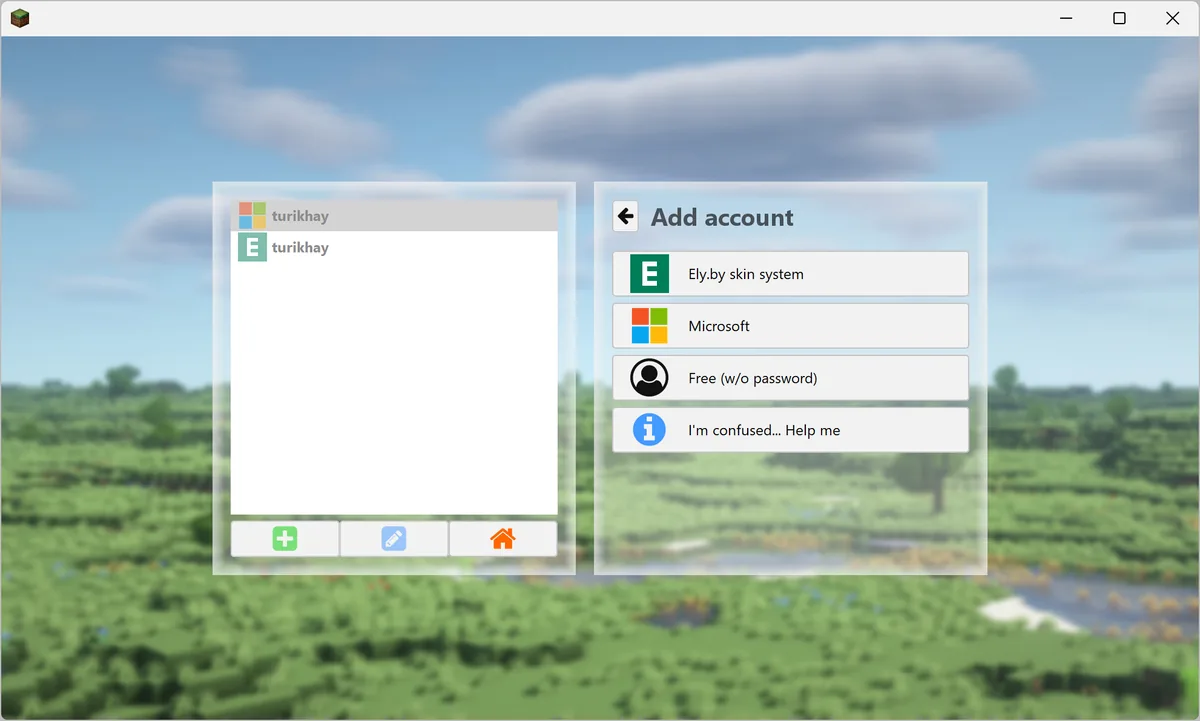
Official TL Legacy interface shown for account and skin setup context.
Checked August 13, 2026: TL Legacy skin instructions and archived LegacyLauncher v3.5.0 are separate contexts.
skin facts
Legacy Launcher skin setup at a glance
Account
Use the same supported account that owns the uploaded skin.
Skin file
Use a valid Minecraft PNG and choose the classic or slim model.
Server
Offline-mode or incompatible servers may not show the same skin.
Project boundary
TL Legacy and archived LegacyLauncher v3.5.0 are different projects.
project boundary
Which Legacy Launcher does this skin guide describe?
Search results can mix TL Legacy with the archived LegacyLauncher v3.5.0 project. The account-provider and skin steps on this page refer to TL Legacy, not to a feature that this archived project officially owns.
Keep the launcher and account provider consistent.
Do not treat a skin guide as proof of Minecraft ownership.
Use the guide for the project you installed.
account setup
How to get skins in Legacy Launcher
Start with a supported account provider and upload the PNG there. Then add or select the same identity in TL Legacy. A different profile, offline name or cached account can make a correct skin look missing.
Official TL Legacy interface shown for account and skin setup context.
Use the same account identity.
Check the selected profile.
Sign in again if needed.
skin file
How to change skin in Legacy Launcher
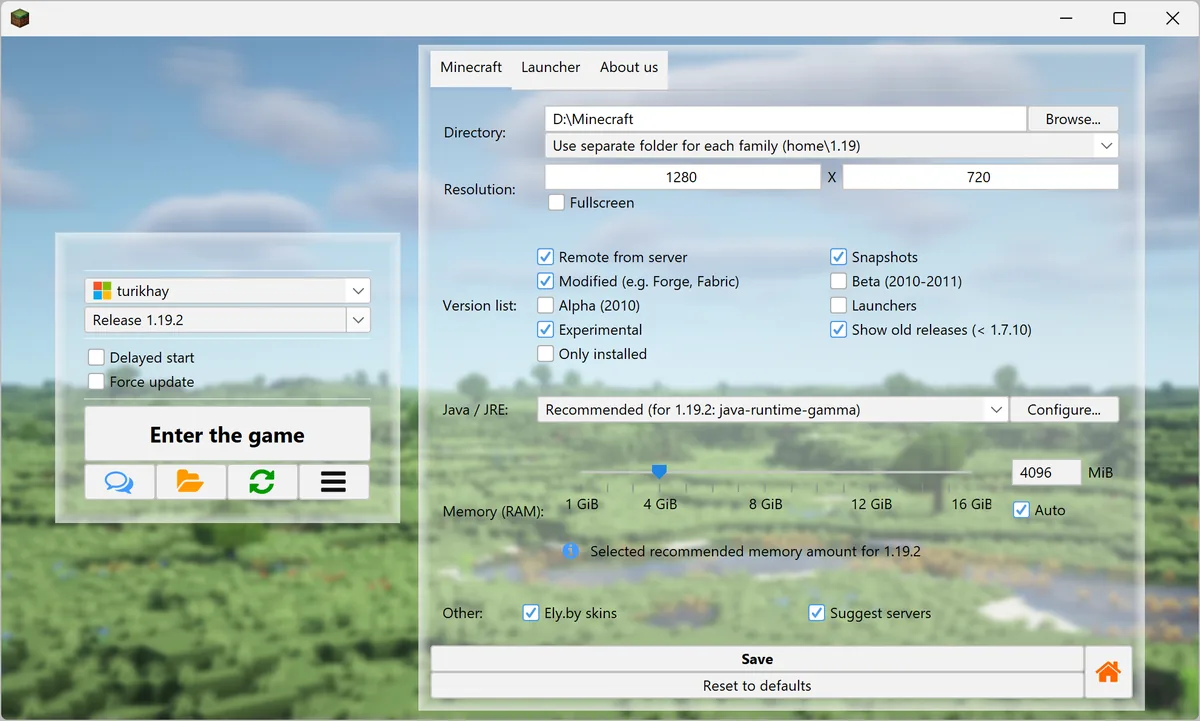
Use a valid Minecraft PNG, usually 64×64, and choose the classic or slim model that matches the skin. If the provider accepts the upload but the model is wrong, the result can look distorted or fail to display as expected.
Official TL Legacy interface shown for account and skin setup context.
Check PNG format and dimensions.
Choose classic or slim deliberately.
Keep a copy of the original skin.
visibility
Why is my Legacy Launcher skin not showing?
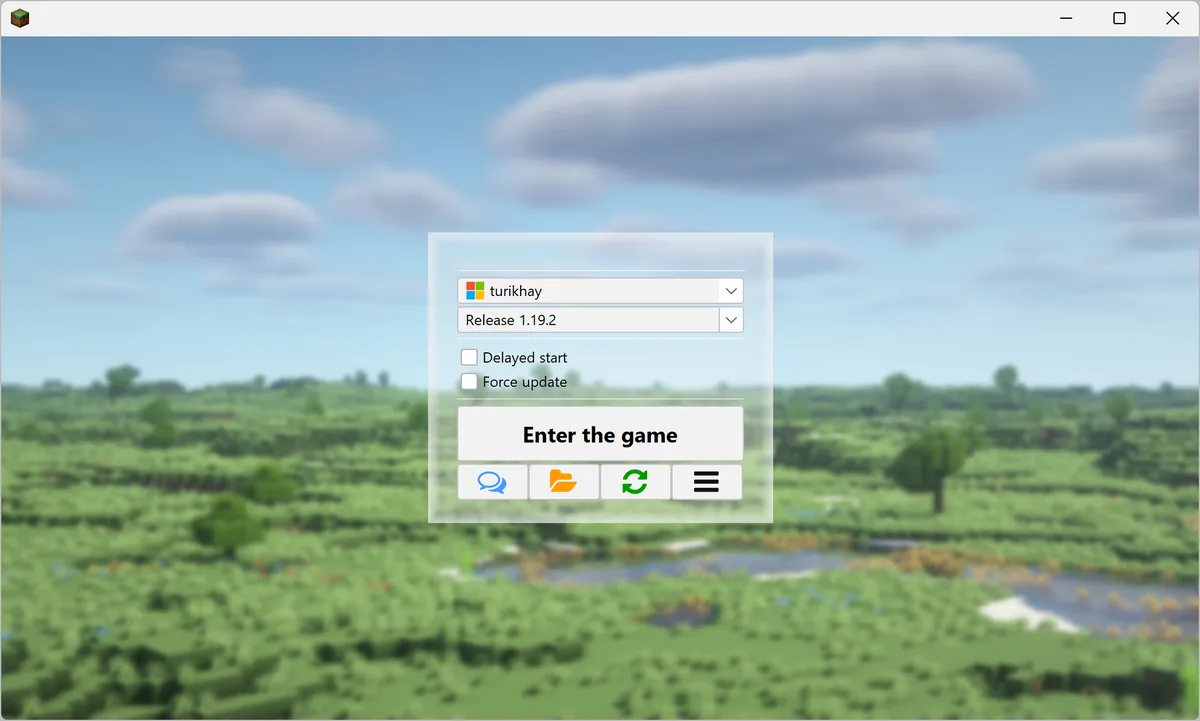
Check the selected account first, then restart the launcher and game. If the skin still does not appear, the server may use offline mode, block the provider or not support the same texture service. Other players may also need a compatible server connection to see it.
Official TL Legacy interface shown for account and skin setup context.
Confirm the active account.
Refresh the launcher and game session.
Ask whether the server supports the service.
provider limits
Official and third-party skin services are different
Ely.by and other account providers belong to their own service workflows. They do not change the archived LegacyLauncher v3.5.0 into TL Legacy, and a server can still limit visibility. Use the provider’s current documentation for account rules and privacy choices.
Do not promise visibility on every server.
Keep third-party credentials on the provider site.
Check current provider rules.
skin FAQ
Legacy Launcher skin questions
How do I change my skin in Legacy Launcher?
Upload a valid PNG through a supported provider, select the same account in TL Legacy and restart the launcher and game.
How do I get skins in Legacy Launcher?
Choose a supported account workflow and use the same identity in the launcher; this page does not provide skin files or accounts.
Why is my skin not showing?
Check account, PNG dimensions, classic/slim model, cache, session and server compatibility.
Can I use Ely.by?
It can be part of a TL Legacy third-party account workflow, but support and visibility depend on the provider and server.
Does Legacy Launcher work with SkinsRestorer?
Do not assume compatibility. The server, plugin and account provider must support the same texture workflow.
Is TL Legacy the same as LegacyLauncher v3.5.0?
No. They are separate projects, so always match the guide to the launcher you actually installed.