Minecraft Launcher on Steam Deck: Legacy Setup Guide
A Minecraft launcher on Steam Deck can mean several different products. This guide is specifically for the community LegacyLauncher application used around Minecraft Legacy Console Edition workflows. Version v3.5.0 added a dedicated Steam Deck interface, larger text, Xbox-style and Nintendo-style controller presets, and improved Proton-GE detection. The project does not include Minecraft game files, and its GitHub repository became read-only on July 13, 2026, so use the verified release page instead of expecting new updates.
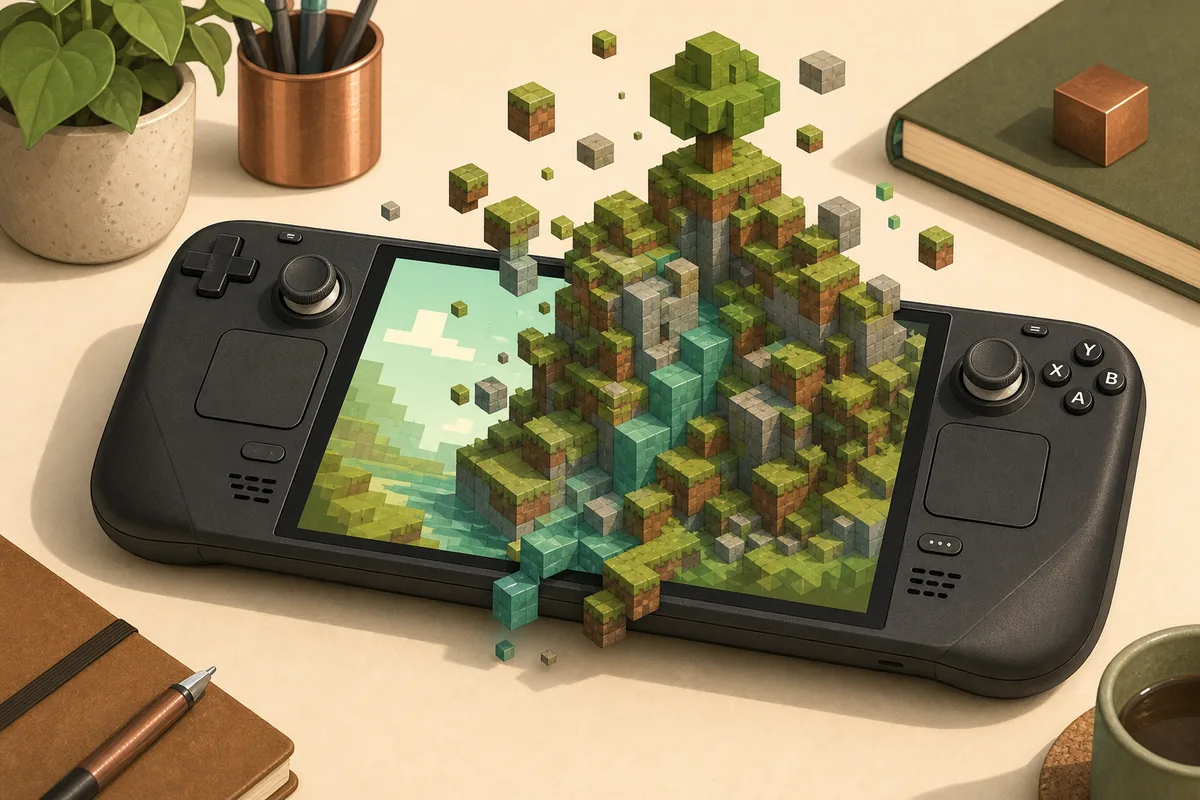
Editorial illustration: this is a setup guide visual, not a real LegacyLauncher or Minecraft screenshot.
Use the official GitHub v3.5.0 AppImage link shown on the Linux download page.
verified status
Steam Deck compatibility snapshot
Verified release
LegacyLauncher v3.5.0, published March 12, 2026
Steam Deck support
Dedicated UI mode, larger text and controller prompt presets
Linux file
LegacyLauncher-3.5.0.AppImage, 118,327,542 bytes
Repository status
Archived and read-only since July 13, 2026
Important boundary
Launcher software only; no Minecraft game files or ownership bypass
quick verdict
Does this Minecraft launcher work on Steam Deck?
LegacyLauncher v3.5.0 is the first release that explicitly describes a dedicated Steam Deck UI mode. The release notes say the mode uses larger text, layouts designed for a handheld screen, controller button prompts, and Xbox-style or Nintendo-style confirm/cancel behavior. That makes the Linux AppImage the relevant build for a Steam Deck test rather than the Windows installer or either macOS DMG.
Compatibility still does not mean an official one-click Minecraft installation. LegacyLauncher is a community launcher for LCE-related workflows, not Mojang or Microsoft software, and this website does not provide game files. Your result depends on the launcher release, the files and accounts you are legally entitled to use, SteamOS permissions, and the compatibility components detected on your device.
Use the Linux AppImage from the verified v3.5.0 GitHub release.
Start in Steam Deck Desktop Mode for the first launch and file-permission checks.
Treat Steam Deck UI mode as a launcher interface option, not proof that every game configuration will run.
Keep Java Edition, Prism Launcher, Bedrock and Legacy Console Edition guides separate; they solve different problems.
install steps
Install the Legacy Minecraft launcher on Steam Deck
Switch to Desktop Mode, open the Linux download guide on this site, and follow its link to the official GitHub release. Confirm that the filename is LegacyLauncher-3.5.0.AppImage and that the tag is v3.5.0. Avoid mirror buttons, shortened links, or packages that claim to include Minecraft. The verified AppImage size is 118,327,542 bytes, which is useful as a source check but is not a substitute for verifying the GitHub release URL.
After the download finishes, open the file properties and allow the AppImage to run as a program. On Linux this is the executable permission; from a terminal the equivalent command is chmod +x followed by the filename. Launch it once in Desktop Mode so permission messages, missing compatibility tools, folder access, or repository settings are easier to see than they would be in Game Mode.
Download from the release page, not from an advertisement or third-party mirror.
Keep the AppImage in a stable folder such as Applications rather than Downloads if you plan to add it to Steam.
Do not rename the file until after the first successful launch, so support notes still match the release asset.
If nothing happens, check executable permission before changing Proton or controller settings.
Open the launcher settings or options after the first successful start and look for the Steam Deck or handheld interface mode described in the v3.5.0 release notes. The mode is intended to enlarge text and improve the spacing of menus on a small screen. If automatic detection does not match your preference, the release notes say it can also be toggled manually.
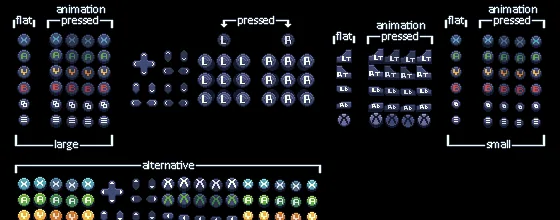
The Xbox-style preset keeps the familiar A-to-confirm and B-to-cancel convention. This is normally the easiest starting point for Steam Deck because its face-button labels follow the Xbox arrangement. Test navigation in the launcher before starting a longer setup task: move focus, open a menu, go back, and confirm that visual button prompts agree with the physical buttons you press.
Official project asset cropped from the LegacyLauncher repository: Xbox-style button prompts used by the controller interface.
Choose Xbox style when you want A to confirm and B to cancel.
Verify prompts in the launcher itself before assuming the same mapping applies inside every game build.
Use Steam Input for device-level remapping only after the launcher's own preset is understood.
If buttons appear doubled, remove overlapping community layouts before changing the launcher preset again.
alternate layout
Use Nintendo-style prompts when muscle memory differs
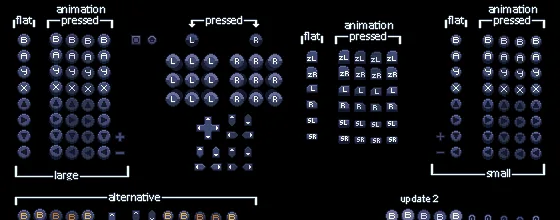
LegacyLauncher v3.5.0 also includes a Nintendo-style preset. Its purpose is not to turn Steam Deck into a Nintendo device; it changes the confirm and cancel convention for players who expect the opposite face-button behavior. This matters because a visually correct icon can still feel wrong when confirm and back are reversed from the player's learned layout.
Change one layer at a time. First choose the launcher's Xbox or Nintendo preset, test it, and only then adjust Steam Input if necessary. Editing both systems at once makes troubleshooting difficult because the same physical press may be translated twice. Keep a simple fallback layout so you can still reach the options menu if an experimental mapping becomes unusable.
Official project asset cropped from the LegacyLauncher repository: Nintendo-style prompts for the alternate confirm and cancel layout.
Use Nintendo style only when that confirm/cancel convention is more natural to you.
Keep Steam Input and launcher mappings from translating the same button twice.
Return to a basic gamepad template if focus becomes trapped or menus skip items.
Controller prompt artwork is a launcher feature; it does not guarantee controller support in unrelated software.
game mode
Add the AppImage to Steam Game Mode
Once the AppImage launches reliably in Desktop Mode, add it as a non-Steam game. Open the desktop Steam client, choose Add a Non-Steam Game, browse to the stable AppImage location, and select the launcher. Give the library entry a clear name such as LegacyLauncher so it is not confused with the official Minecraft Launcher, Prism Launcher, or a game shortcut.
Return to Game Mode and open the new library entry. If it fails there but works on the desktop, the likely difference is the launch environment rather than the download itself. Recheck the target path, working directory, file permission, and any compatibility setting you added. Do not enable a random Proton version simply because another Minecraft guide recommends it; an AppImage is a native Linux package, while individual downstream components may have separate Wine or Proton needs.
Add the stable AppImage path, not a temporary browser download path.
Test the launcher in Desktop Mode before debugging Game Mode.
Use a clear library name that does not imply Mojang or Microsoft endorsement.
Change one compatibility setting per test and record which state worked.
troubleshooting
Fix common Steam Deck launch and control problems
If the launcher will not open, start with the simplest checks: verify the AppImage is executable, confirm that the file still exists at the Steam shortcut target, and launch it from Desktop Mode where an error can be observed. A download page that opens but a file that never starts usually points to local permission, architecture, corruption, or environment issues rather than a controller preset.
The v3.5.0 notes mention stronger Proton-GE and custom Wine detection, but detection is not the same as bundling every compatibility tool. If a repository preset, Wine build, or downstream configuration is missing, use the launcher's visible error and the archived GitHub issues as historical context. Because the repository is read-only, do not promise that a newly discovered SteamOS issue will receive a patch.
AppImage does nothingCheck executable permission and launch from Desktop Mode.
Shortcut breaksConfirm the AppImage target path and working directory.
Buttons are reversedSwitch between Xbox and Nintendo presets before remapping Steam Input.
Double inputRemove overlapping Steam Input or community mappings.
Game files requestedStop: the launcher release does not include Minecraft game files.
Future patch expectedThe repository has been archived and is currently read-only.
scope and safety
Know what this Steam Deck guide does not cover
Many pages ranking for Minecraft on Steam Deck explain Java Edition through Prism Launcher. Those instructions may involve Microsoft account login, Java runtimes, Fabric, Forge, or mod packs. They are not interchangeable with this LegacyLauncher guide. Likewise, Bedrock workarounds, Android packages, console edition dumps, web ports, and community game-file archives are separate topics with different ownership and safety questions.
This guide only helps you verify and start the LegacyLauncher AppImage and understand the Steam Deck UI options documented in v3.5.0. Use official Minecraft services for account, purchase, and entitlement questions. Use the project's archived GitHub pages for historical release information, and keep the launcher file separate from any content you are not legally entitled to use.
Because the repository is archived, preserve a small verification record after you reach a working setup. Keep the v3.5.0 release URL, the original AppImage filename, the file size, the folder used by your Steam shortcut, and the controller preset that worked. This record is more useful than repeatedly downloading the same file from search results. If a future SteamOS update changes behavior, compare one setting at a time against that known-good state. Never treat an old community comment as proof that a different binary is newer, safer, or official.
The verified v3.5.0 release provides a Linux AppImage and explicitly adds a Steam Deck UI mode. Start in Desktop Mode, grant executable permission and test the launcher before adding it to Game Mode.
Which LegacyLauncher file should Steam Deck use?
Use LegacyLauncher-3.5.0.AppImage from the official GitHub v3.5.0 release. Do not use the Windows EXE or macOS DMG files.
Does this download include Minecraft Legacy Console Edition?
No. It is launcher software only. This site does not provide Minecraft game files, accounts, ownership bypasses or unofficial bundles.
Should I choose Xbox or Nintendo controller style?
Xbox style normally matches Steam Deck face-button labels and uses A to confirm. Nintendo style is for players who prefer the opposite confirm/cancel convention.
Why does the AppImage work in Desktop Mode but not Game Mode?
Check the non-Steam shortcut target, working directory, executable permission and compatibility settings. Avoid changing multiple layers at once.
Will LegacyLauncher receive more Steam Deck updates?
The repository was archived and made read-only on July 13, 2026. The latest verified release remains v3.5.0, but future updates should not be assumed.