Legacy Launcher Servers: Add, Configure and Fix Connections
Legacy Launcher v3.5.0 includes a Servers panel where you can save a server name, IP address and port for the selected Minecraft Legacy Console Edition instance. This guide explains the official controls, the servers.txt file, the difference between a saved server and a server instance, and the safest checks when a connection fails. It covers the archived gradenGnostic/LegacyLauncher project—not TL Legacy, TLauncher, cracked server lists or bundled Minecraft files.
First-party project page captured July 30, 2026. The latest verified release remains v3.5.0.
Version freshness checked July 30, 2026: GitHub still lists v3.5.0, published March 12, 2026, and the repository remains archived.
quick answer
What Legacy Launcher server setup actually controls
Server fields
Name, IP address and port
Default port example
25565, unless the host provides another port
Saved list
servers.txt inside the selected instance install path
Verified release
v3.5.0 — March 12, 2026
Project status
Archived and read-only; no future compatibility fixes are promised
intent boundary
Which Legacy Launcher servers does this guide cover?
This page covers the gradenGnostic/LegacyLauncher desktop app used in Minecraft Legacy Console Edition workflows. Its source includes a Servers button and a modal for a display name, IP address and port. A saved entry is written to the selected instance's servers.txt file and can later be removed from the same panel.
Legacy Launcher servers in this guide are saved connection destinations for a specific instance. They are not an automatic hosting service, a public directory or proof that the selected client build can join every address.
The keyword is ambiguous. Similarweb also connects it with TL Legacy, TLauncher, public server directories and cracked-server searches. Those are different products and intents. This guide does not publish a public server list, bypass ownership, recommend cracked servers or claim that every Java Edition address is compatible with a Minecraft LCE build.
Use this guide when the app you installed is from gradenGnostic/LegacyLauncher.
Use the product comparison guide if your launcher says TL Legacy or TLauncher.
Get the exact address, port, edition and required version from the server operator.
Treat a server list entry as connection information, not proof of compatibility or ownership.
add a server
How to add a server in Legacy Launcher
Open the launcher and select the instance you intend to use. Choose Servers, then enter a short name you will recognize, the host or numeric IP supplied by the server operator, and the required port. The official interface uses 127.0.0.1 and 25565 as examples, but a remote server normally provides its own address and may use a different port.
Save the entry, close the panel with Done, and launch the matching instance. The server entry does not download a game, create an account, open a firewall or convert an incompatible server. It only records the connection details used by the selected installation.
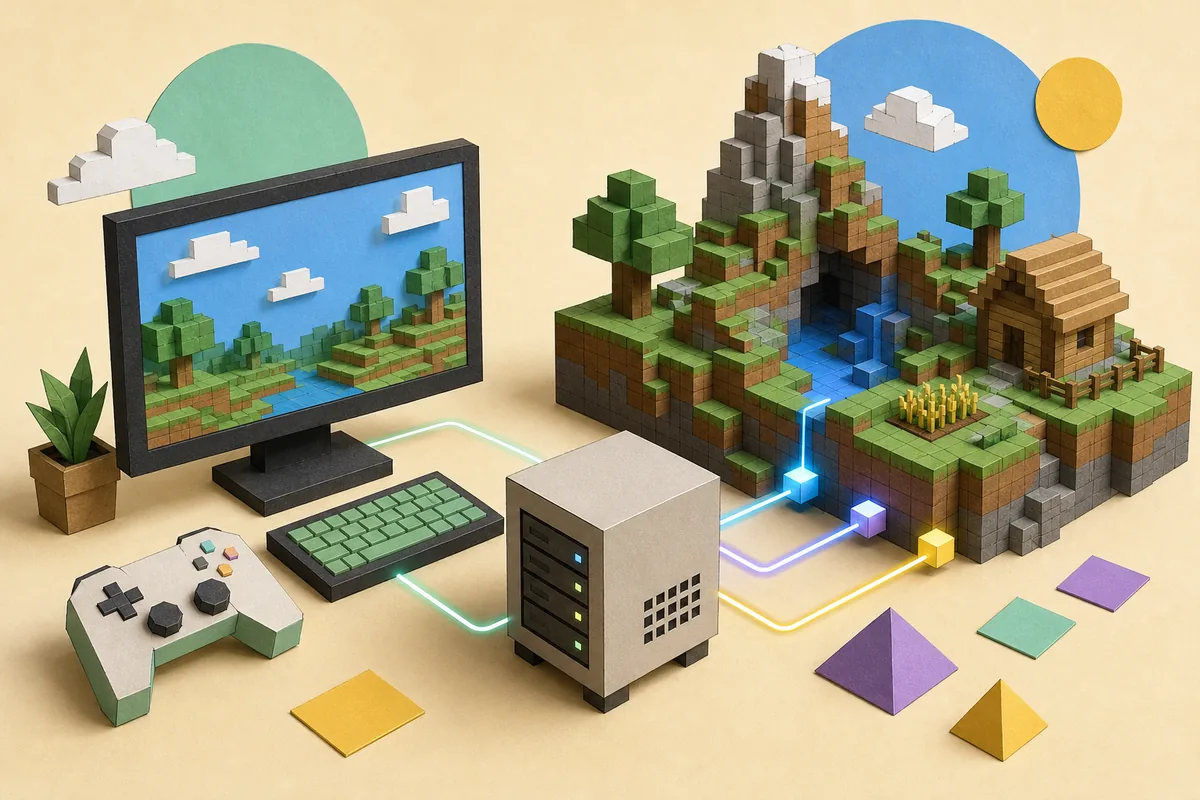
Concept illustration—not a real launcher screenshot. It visualizes the local launcher, server host and game instance relationship.
Name: a local label such as Home Server or Friends Test World.
IP or host: enter the exact value supplied by the host; do not add http:// or a web-page path.
Port: use the supplied numeric port. Do not assume 25565 when the host gives another value.
Instance: select the correct LCE release and configuration before launching.
field checklist
Server name, IP, port and instance compatibility
Most failed setups are not caused by the Add button. They happen because the address, port or selected game build does not match the host. Check each field independently before changing launcher files or reinstalling the application.
Field
What to enter
Common mistake
Best check
Server name
Any clear local label
Treating the name as the address
Use a label that identifies the host and version
IP or host
Host name or numeric IP
Pasting a website URL or invitation page
Copy the connection host exactly
Port
Numeric port from the operator
Assuming every server uses 25565
Confirm the advertised port
Instance
Matching LCE build and files
Launching a different release or edition
Match the host's required version and platform
saved data
How Legacy Launcher stores the server list
The v3.5.0 renderer source builds the path to servers.txt inside the current instance's install directory. Each saved record uses three lines in this order: IP, port and name. The launcher reads those groups, displays the name and IP:port pair, and rewrites the file when an entry is deleted.
The same source preserves servers.txt during selected update and cleanup operations. That is useful, but an archived app should not be treated as your only backup. Before moving an instance or changing its install path, close the launcher and copy the instance folder or at least its servers.txt file to a safe location. Do not edit the file while the launcher is writing it.
A missing servers.txt file can simply mean no server has been saved yet.
Each instance can point to a different install path and therefore a different server list.
A malformed manual edit can break the three-line record grouping.
Back up the file before manual changes; use the launcher panel for normal additions and removals.
important distinction
Saved server entry versus server-mode instance
Legacy Launcher exposes two server-related ideas. The Servers panel manages destinations you want to connect to. Separately, an instance can be marked as a server instance; the source adds a -server launch argument for that configuration. These controls are not interchangeable.
If you only want to join a host, add its address and use the matching client instance. Do not enable server mode merely because the destination is multiplayer. Server mode is for a configuration intended to run server-side software and requires the correct files, permissions and network setup outside the launcher.
Join a serverSave name, IP and port; launch a compatible client instance
Run a server instanceUse an intentionally prepared server configuration and the -server mode
Automatic public hostingNot provided by the launcher; networking and hosting remain separate
connection fixes
Troubleshoot Legacy Launcher server connections
Start with the smallest verifiable facts: can another approved player reach the same address, is the host currently online, is the port correct, and does your selected instance match the required build? A launcher reinstall cannot fix an offline host, a private address used outside its local network, a closed port or an edition mismatch.
If the launcher cannot save an entry, check that the selected instance directory exists and is writable. If the entry saves but the game cannot connect, keep the launcher and network problems separate. Confirm the host first, then local firewall or router rules, and only then investigate instance files.
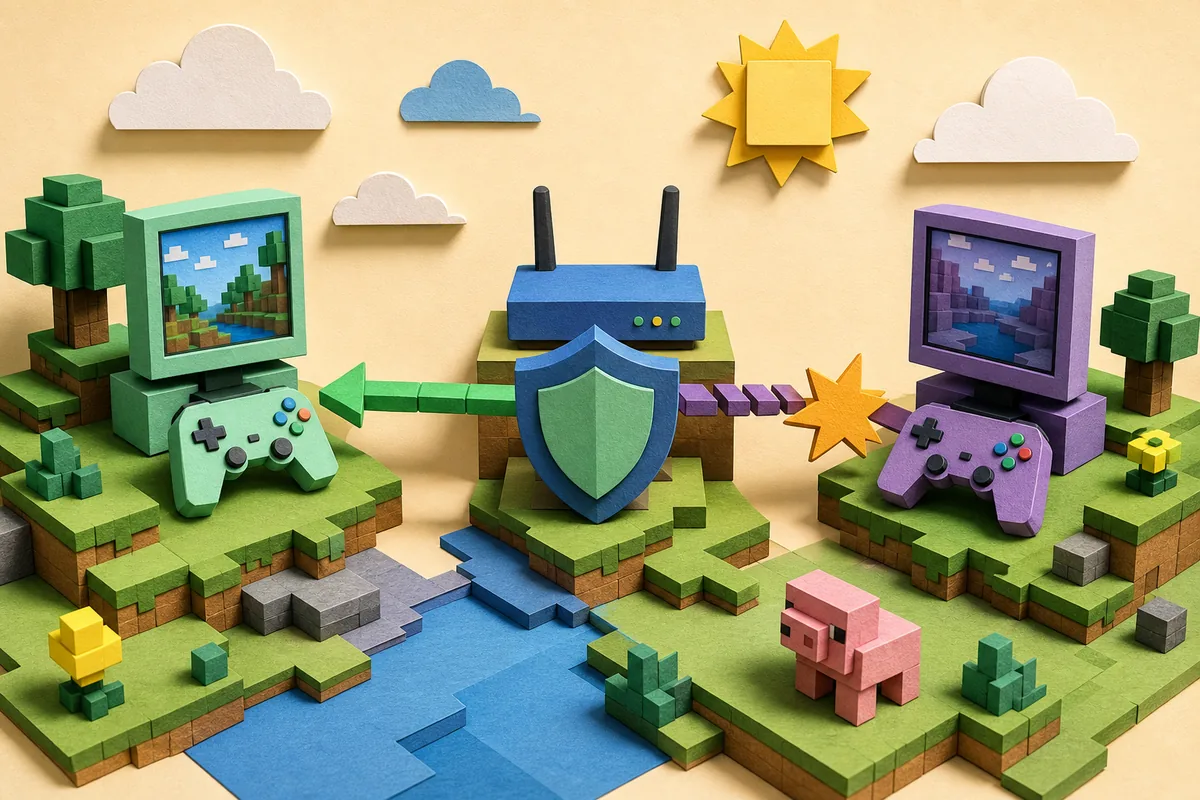
Concept illustration—not a real error screen. Check host availability, address, port, version and local network controls in that order.
No servers shown: add an entry for the selected instance, then confirm its servers.txt path.
Failed to save: verify the instance install directory exists and your account can write to it.
Connection refused or timeout: confirm the host is running, the address is reachable and the port is open.
Version or protocol error: use the exact client build required by the host.
Works on the host PC only: a private LAN address may not be reachable from the internet without correct router and firewall configuration.
Still failing: test a known-good connection supplied by the operator and keep logs or exact error text for diagnosis.
safe boundaries
What this page does not provide
Similarweb related terms include free servers, cracked servers, TLauncher servers and public server lists. Those terms may have traffic, but they do not match the archived Minecraft LCE launcher project closely enough to become separate pages here. Publishing them would mix products, weaken the site's topic boundary and create avoidable safety and ownership risks.
Use a server only when its operator clearly states the address, port, supported edition, required version, access rules and ownership requirements. LegacyLauncher.wiki does not verify third-party public servers, does not host server software or Minecraft game files, and does not promise that a listed Java Edition server works with an LCE client.
Open Servers, enter a local display name, the exact host or IP, and the port supplied by the server operator, then save the entry and launch the matching instance.
Where does Legacy Launcher save servers?
The v3.5.0 source stores the list in servers.txt inside the current instance install path. Each entry uses IP, port and name on three consecutive lines.
Does every Legacy Launcher server use port 25565?
No. The interface shows 25565 as an example, but you must use the port supplied by the host.
Why does my saved server not connect?
A saved entry only records connection details. Check host uptime, address, port, firewall or router rules, and the required Minecraft LCE build.
Is server mode required to join multiplayer?
No. Server mode is a separate instance setting that adds a -server launch argument. Joining a host normally uses a compatible client instance plus the saved address.
Does this guide list free or cracked Minecraft servers?
No. It explains the official Legacy Launcher server controls and does not publish public, cracked or bypass server lists.