This Legacy Launcher controller support guide starts after you have completed a verified Legacy Launcher download. It explains the Xbox-style and Nintendo-style prompts documented in the v3.5.0 release, how to test a controller one layer at a time, and how to avoid confusing launcher input with Minecraft or Steam Input settings. The page covers the archived gradenGnostic/LegacyLauncher project for Minecraft Legacy Console Edition workflows. It does not promise support for unrelated Java launchers, game files, accounts, or an unverified fork.
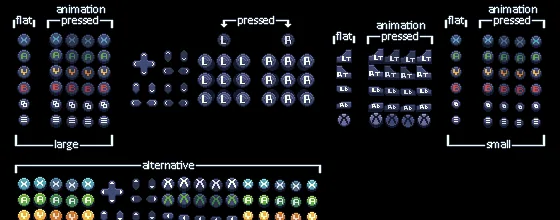
Official project asset showing the Xbox-style button prompts documented for LegacyLauncher v3.5.0.
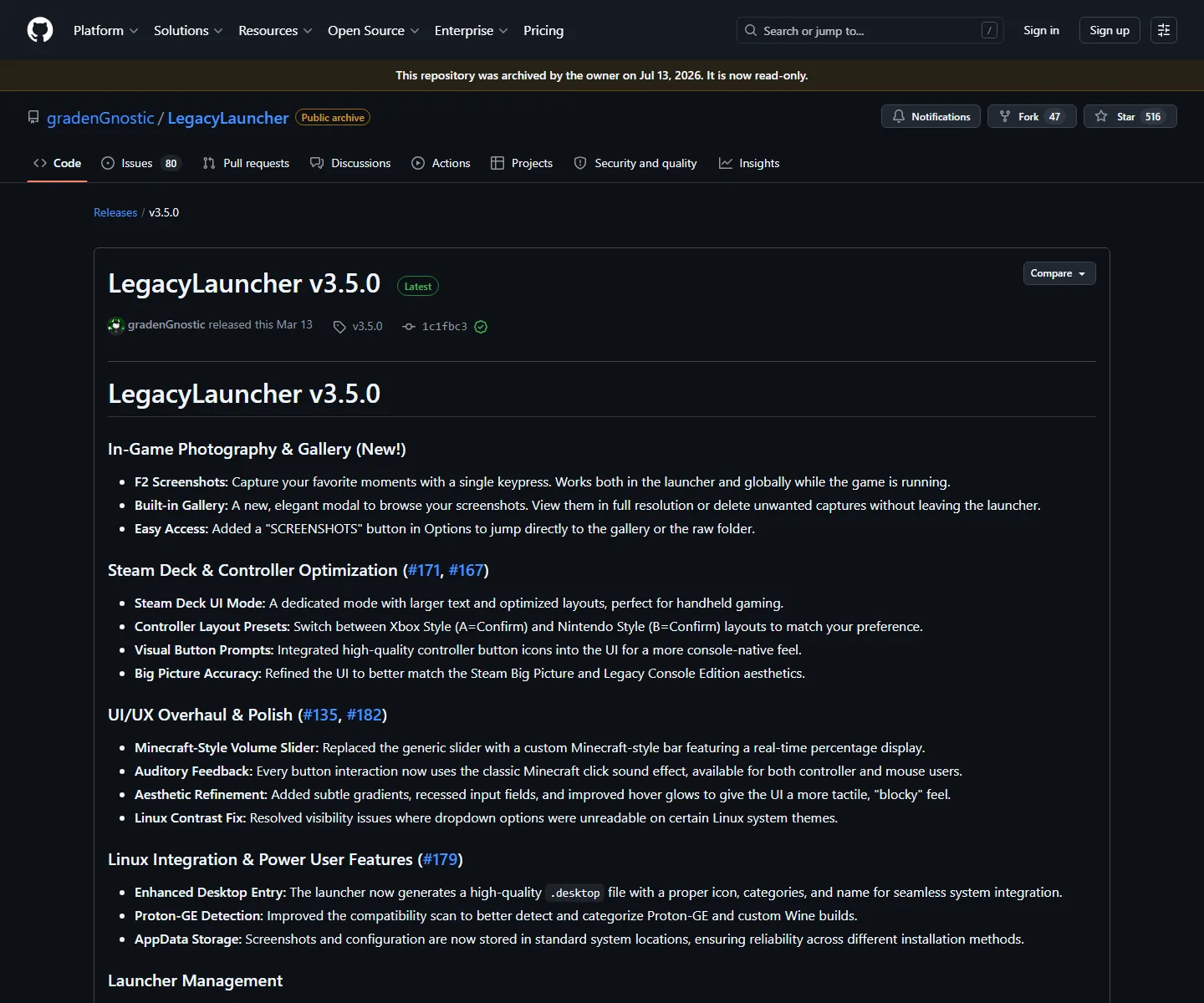
Confirm the repository owner and release tag before changing controller settings.
quick answer
Legacy Launcher controller support at a glance
Documented release
LegacyLauncher v3.5.0, published March 12, 2026
Prompt presets
Xbox-style and Nintendo-style confirm/cancel layouts
Best first test
Open the launcher in a clean desktop session before adding Steam Input layers
Platform note
Windows, Linux and Steam Deck behavior can differ by driver, permission and compatibility layer
Project boundary
Archived community launcher for LCE workflows; it is not the official Minecraft Launcher
identify the right app
What controller support does Legacy Launcher document?
The release notes for gradenGnostic/LegacyLauncher v3.5.0 describe a dedicated Steam Deck UI mode, larger text, visual button prompts, and two controller layout presets. Those notes are the strongest evidence for controller support on this site because they name the project and the release tag together. They do not mean that every controller, game build or Java launcher will behave the same way.
Before troubleshooting, compare the application name, repository owner and version. This page is about the archived LegacyLauncher project used around Minecraft Legacy Console Edition workflows. The separate Java Edition Legacy Launcher at llaun.ch, Prism Launcher and the official Minecraft Launcher have different input paths. A tutorial that shows a different product is not a reliable fix for this application.
The release notes establish the controller presets and Steam Deck mode; they do not prove support for unrelated launchers.
Match the repository owner and tag before copying a controller fix.
Treat the Xbox and Nintendo labels as launcher prompt presets, not a universal gamepad guarantee.
Keep LCE, Java Edition, Prism Launcher and the official Minecraft Launcher as separate support contexts.
verify the download
Finish the Legacy Launcher download check before pairing
Controller debugging is difficult when the binary itself is uncertain. Start from the site download center or the official GitHub v3.5.0 release, confirm the filename for your platform, and keep the release page open while you test. On Windows that means the EXE; on Linux or Steam Deck it means the AppImage; macOS uses the matching DMG. The file is launcher software only and does not include Minecraft game files.
After the first launch, write down the operating system, controller model, connection type and prompt preset. This small record separates a pairing problem from an application setting. If a mirror, shortened URL or bundled installer changes the product name, stop and verify the source rather than allowing a new input layer to hide the problem.
Use the platform file that matches your operating system and architecture.
Keep the original filename and release tag until the first successful test.
Record the controller connection before changing a mapping.
Do not use a bundled game archive or account offer as a controller fix.
choose a prompt preset
Choose Xbox-style or Nintendo-style prompts
The Xbox-style preset follows the convention many PC players expect: the A button confirms and the B button goes back. Open the launcher options, select that preset, and test focus movement, menu open, cancel and confirmation in a short loop. The visible prompt should match the physical button you press. If it does not, change the launcher's preset before touching Steam Input.
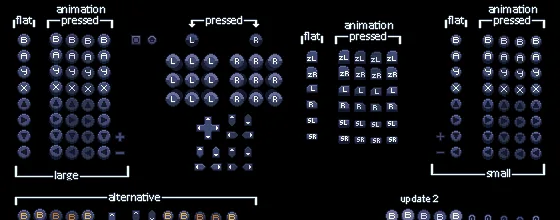
The Nintendo-style preset reverses the confirm and cancel convention for players who learned that layout elsewhere. It changes the labels shown by the launcher; it does not convert a Steam Deck, Xbox pad or Nintendo controller into another device. Choose the preset that matches your muscle memory, then leave it unchanged while testing the rest of the stack.
The alternate prompt preset is useful when your preferred confirm and cancel convention differs from Xbox style.
Xbox style: start with A to confirm and B to cancel.
Nintendo style: use the alternate convention when it matches your learned layout.
Test the same menu actions after every preset change.
Do not edit Steam Input and launcher settings in the same experiment.
connect and test
Connect a controller and test one layer at a time
Connect the controller before opening Legacy Launcher when possible. A wired connection is a useful baseline because it removes Bluetooth sleep, battery and pairing variables. On Windows, let the operating system finish installing the device before launching. On Linux, check that the desktop session can see the device and that the AppImage has the permission it needs. On Steam Deck, perform the first test in Desktop Mode so errors and file paths remain visible.
Use a four-action smoke test: move between two fields, open a menu, cancel it, and confirm one harmless option. If all four actions work with the expected prompts, close the launcher and test the same controller in the next layer you plan to use. If one action fails, keep the successful baseline and change only the connection, preset or remapper setting that could explain that action.
Illustrative setup visual, not a live screenshot. Use it as a reminder to validate desktop, launcher and game layers separately.
Baseline: native wired or Bluetooth connection with no remapper.
Launcher test: focus, open, cancel and confirm.
Second layer: add Steam Input or a desktop profile only after the baseline passes.
Game test: treat downstream input as a separate compatibility check.
troubleshooting matrix
Fix common Legacy Launcher controller problems
When a controller fails, describe the exact symptom instead of searching for a generic “Legacy Launcher controller fix.” A missing device, reversed prompt and doubled input are different failures. Start with the last known-good layer, then test one change. The matrix below keeps the release evidence separate from guesses about drivers or game files.
If the launcher works in Desktop Mode but not Game Mode, compare the shortcut target, working directory, permission and Steam Input profile. If a controller works in another application but not the launcher, check the launcher's selected preset and whether a second remapper is intercepting it.
No device appearsReconnect natively, confirm the operating system sees it, then reopen the launcher.
Prompts are reversedSwitch the launcher's Xbox/Nintendo preset before adding a remapper.
Every press repeatsRemove overlapping Steam Input or desktop mappings and retest.
AppImage will not openCheck executable permission and run the first test in Linux Desktop Mode.
Game ignores inputThe downstream game or compatibility layer needs its own input check.
A mirror promises a fixStop and return to the verified v3.5.0 release source.
Keep a known-good preset so you can recover from an experimental mapping.
Change one layer per test and record the result.
Do not treat a controller prompt asset as proof that every game mode is supported.
repeatable checklist
A safe Legacy Launcher controller checklist
A short checklist prevents a controller experiment from becoming a source problem. Confirm the project identity, download the matching platform release, connect the controller natively, choose one prompt preset and complete the four-action smoke test. Keep the release URL, filename, operating system and working preset in a note so a future update can be compared with a known state.
The archived status also changes how to interpret new advice. A community fork, video or mirror may be useful, but it is not an official v3.5.0 update unless its own source and release metadata can be verified. Never trade account credentials, paid-game access or game files for a controller fix. The launcher is a tool around an LCE workflow, not a replacement for Minecraft ownership or official services.
Project: gradenGnostic/LegacyLauncher, not a similarly named Java launcher.
Release: v3.5.0 and the platform file that matches the operating system.
Input: native controller first, then one prompt preset.
Test: focus, open, cancel and confirm before adding another mapping layer.
Recovery: return to the official release and keep a known-good configuration.
Boundary: no Minecraft game files, accounts, cracked builds or ownership bypasses.
The official v3.5.0 release documents a Steam Deck UI mode, visual button prompts and Xbox-style or Nintendo-style controller presets. Test those launcher controls first; downstream game support is a separate question.
Which Legacy Launcher controller layout should I choose?
Choose Xbox style when A-to-confirm and B-to-cancel match your muscle memory. Choose Nintendo style when you prefer the alternate confirm and cancel convention. Validate the visible prompts in the launcher.
Why are my Legacy Launcher controller buttons reversed?
A prompt preset or a second remapping layer may be translating the same button. Return to a native connection, choose one launcher preset and remove overlapping Steam Input or desktop mappings before retesting.
Can I use Steam Input with Legacy Launcher?
You can test it after the launcher's native controller path works, but add one layer at a time. Steam Input can double or reverse actions when another remapper is already active.
Does controller support mean every Minecraft game mode works?
No. The release notes establish launcher UI and prompt features. The game build, compatibility layer, server or Java launcher may have different input requirements.
Is the controller guide for the Java Legacy Launcher?
No. It is for the archived gradenGnostic/LegacyLauncher project used around Minecraft Legacy Console Edition workflows. The separate Java Edition Legacy Launcher has its own documentation and support boundaries.